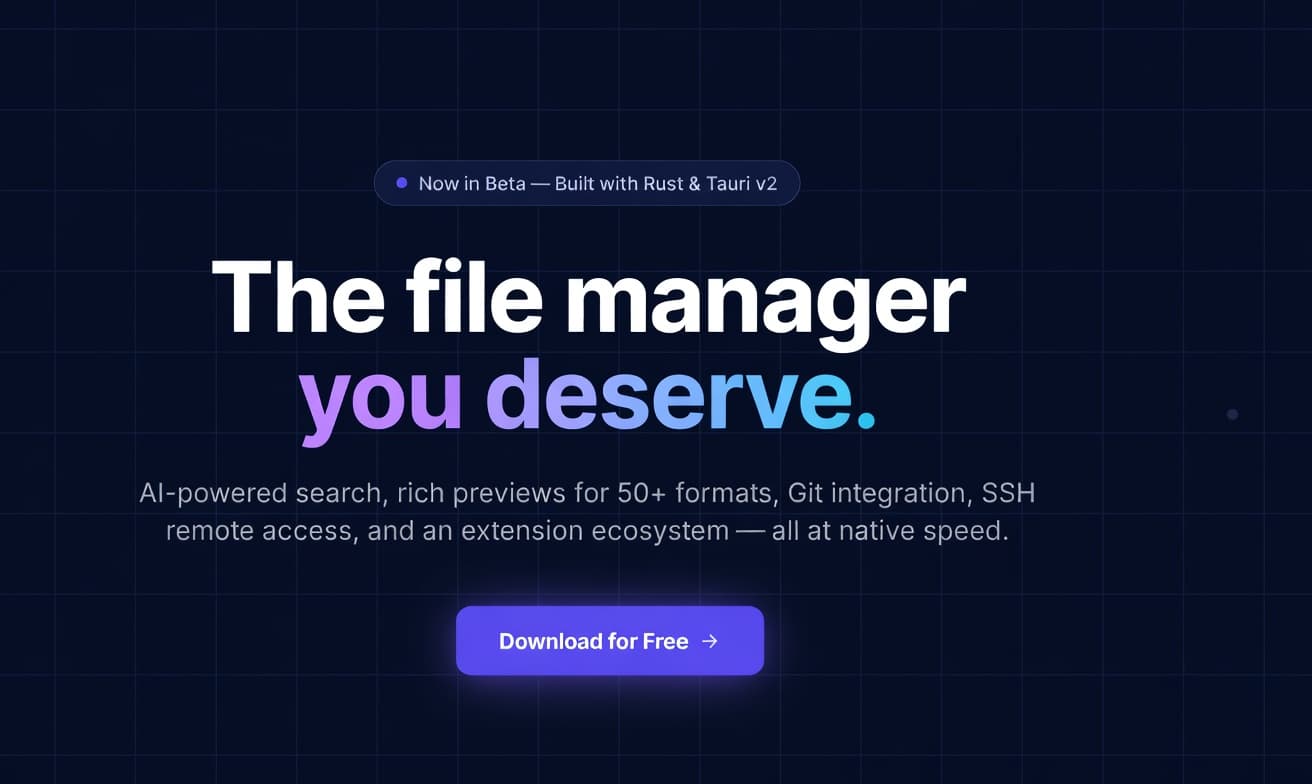
For decades, the default file managers shipped with our operating systems have remained stubbornly unchanged. They are designed for the average consumer organizing vacation photos, not for developers.
The Real Problem: The modern developer’s workflow is heavily fragmented. If you want to find a specific code snippet, check a Git commit, edit a configuration file, SSH into a server, and ask an AI to explain a dense PDF, you typically have to open Windows Explorer (or macOS Finder), an IDE like VS Code, a Git GUI, a terminal, and a web browser. This constant "context switching" fractures your focus, drains your system's RAM, and kills productivity. The file manager should be the central hub of your system, but instead, it is often just a basic grid of icons.
Xplorer (xplorer.space) was built to solve this exact problem. Currently in Beta, it is an open-source, cross-platform desktop file explorer that completely reimagines your local and remote file systems. By treating artificial intelligence, Git, and remote server access as native features and allowing you to inject powerful extensions directly into the UI, Xplorer eliminates the need to constantly switch apps.
Here is an in-depth look at how Xplorer actually solves the developer workflow problem and the exact step-by-step guide to mastering it.
1. A Next-Generation, Developer-First File System
Most traditional file managers leave you to do the heavy lifting. Xplorer takes a radically different approach by acting as a highly optimized, unified workspace.
- Native Speed & A Lightweight Footprint: Instead of relying on bloated Electron wrappers, Xplorer is built on a highly optimized Rust and Tauri v2 backend. Heavy file system operations run at blistering native speeds, yet the entire installation size clocks in at under 50MB.
- Modern UI Architecture: The frontend uses React 18, TypeScript, and Tailwind CSS. State management is handled seamlessly by TanStack React Query, ensuring that file indexing and UI updates happen instantly.
- Over 50+ Rich Previews: You can preview images, PDFs, spreadsheets, and videos inline. Crucially, it provides full syntax highlighting for raw code files directly in the preview pane, meaning you don't need to boot up an IDE just to read a script.
2. Step-by-Step User Guide: Mastering Your Files
Because Xplorer consolidates so many tools into one application, setting it up is a more powerful experience than just opening a standard folder. Here is the exact journey to getting the most out of the platform.
Step 1: Quick Sign-Up and The Web Dashboard
To tap into the broader Xplorer ecosystem, specifically the extension marketplace, the very first step is creating your account on their website. The platform makes this completely frictionless by offering a secure "Continue with GitHub" option.
With one click, your account is authenticated using your existing developer credentials. You are taken to a personalized web dashboard where you can manage your profile, configure your developer settings, and explore community plugins.
Step 2: Navigating the Unified Workspace
Once you open the app, you immediately see how Xplorer tackles screen clutter. Instead of opening ten overlapping folder windows, you use a single unified workspace.
You can use Tabbed Browsing to keep multiple projects open simultaneously, and Split Panes to drag and drop files across different directories smoothly. Xplorer is also highly keyboard-driven, allowing power users to set up custom shortcuts to navigate their hard drives without touching a mouse.
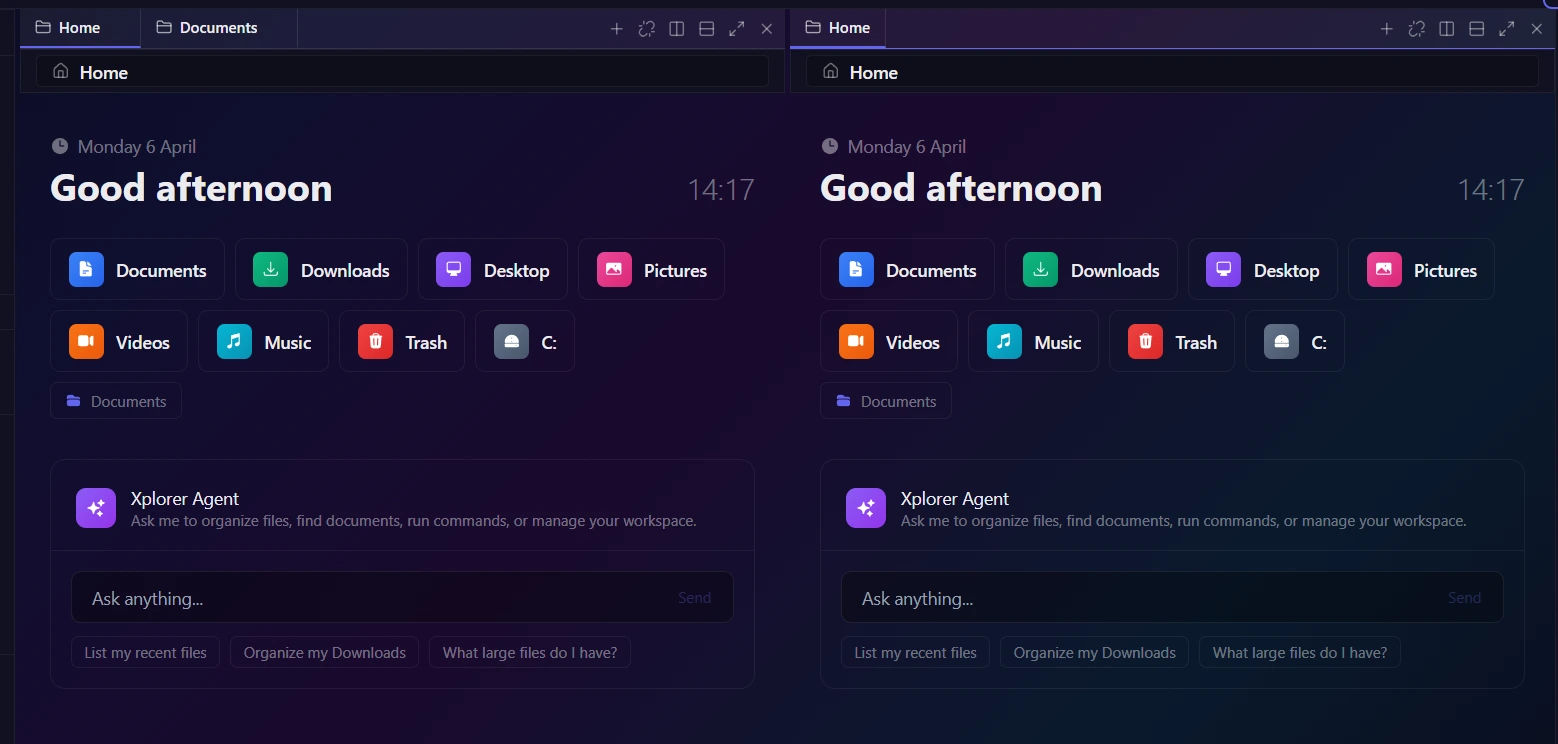
Step 3: Activating AI Chat & Smart Search
Finding files and understanding their contents is where Xplorer truly shines. It supports multiple AI providers (Claude, GPT, Gemini, DeepSeek) and even integrates with local Ollama models for 100% offline, privacy-focused AI.
- Semantic Search: Standard search requires knowing the exact file name. Xplorer indexes your files, allowing natural language queries. Type "Lecture about AI" or "PDF invoices over 1MB" into the address bar, and it finds the files based on their actual meaning and content.
- Context-Aware File Chat: Open the AI sidebar and "chat" with your files. If you have a poorly documented config file or a 50-page PDF, ask the AI to explain the code, summarize the document, or logically categorize a messy downloads folder.
Step 4: Connecting Developer Tools (Git & SSH)
Xplorer brings your terminal and IDE tools directly into the file browsing experience.
- Native Git Integration: When you enter a local Git repository, Xplorer automatically pulls up a built-in Git management panel. You can view your commit graph, analyze file diffs, check the blame view, and manage branches all without opening a separate Git GUI.
- SSH Remote Access: Managing remote servers usually requires navigating traditional FTP clients. Xplorer allows you to configure SSH connections directly inside the app, letting you browse, move, and edit remote server files exactly as if they were local.
Step 5: Solving Specific Workflows with Extensions
So, what actually are these extensions? In Xplorer, an extension is not just a cosmetic skin. It is a functional mini-application built with web technologies that hooks directly into the core Rust backend via an SDK. They solve the "context switching" problem by bringing external app features into the file manager.
- Code Editor: Instead of opening VS Code to change one line in an
.envfile, this extension (powered by CodeMirror 6) gives you a full editing experience right inside the file preview pane. - Architecture Visualizer: Instead of spending an hour reading through a new project's folders to understand how it works, this extension uses AI to instantly scan the directory and generate a visual map of the tech stack, frontend, and backend communication patterns.
- Claude Code: Brings an AI agent directly into the file system. You can open a bottom panel and ask Claude (an AI model by Anthropic) to execute commands, edit files, or fix bugs locally.
- Docker Manager: Allows you to manage your containers and images directly alongside the project files that mount them.
Step 6: Publishing Your Own Extensions via CLI
Xplorer empowers developers to create their own workflow solutions. If you build a custom plugin, publishing it to the community is handled through the developer-friendly Xplorer Command Line Interface (CLI) and a secure token from your dashboard.
The publishing workflow looks like this:
- Install the CLI: Run
npm i -g @xplorer/cli - Generate Your Token: Navigate to the Settings tab in your web dashboard and click Generate CLI Token. Copy this token immediately, as it won't be shown again.
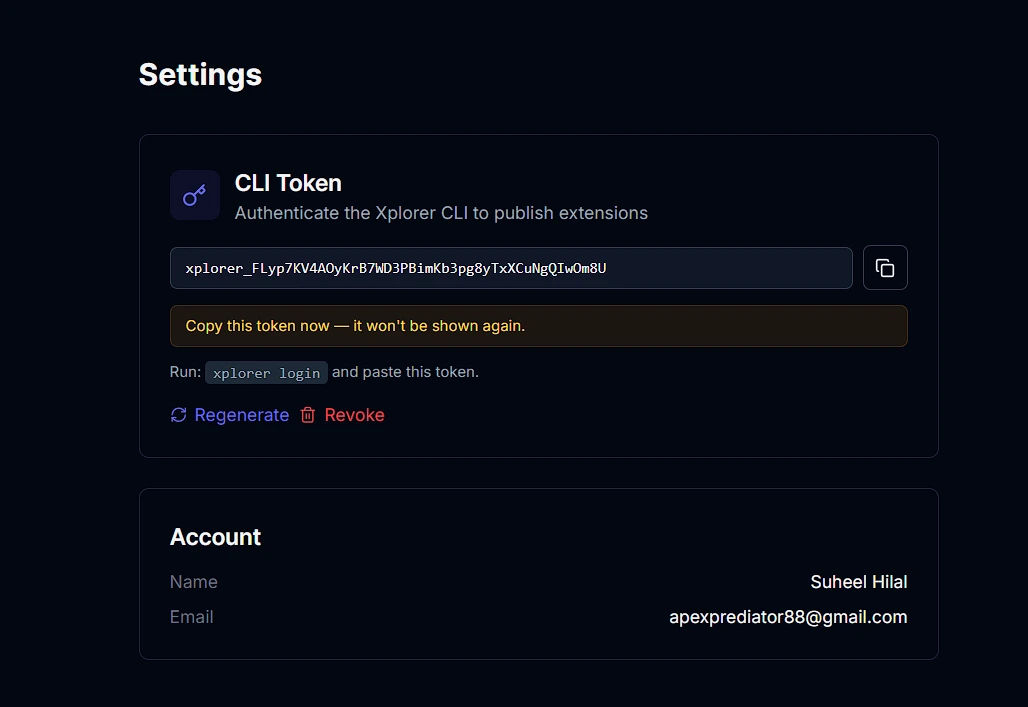
- Login to your account: Authenticate your terminal by running
xplorer loginand pasting your token. - Publish: Navigate into your extension's folder and deploy it:
cd my-extension && xplorer publish
3. Pricing and The Open Source Commitment
Unlike many modern developer tools that aggressively lock their best features behind expensive monthly paywalls, Xplorer is currently free and open-source.
The development team notes that while Pro plans with premium features are currently being designed and will launch soon, the massive suite of core features available today remains entirely free to use.
What is free today:
- ✓ Full file management
- ✓ AI chat assistant
- ✓ Git integration
- ✓ Extension marketplace
- ✓ All themes
- ✓ SSH remote access
(If you find Xplorer useful for your daily workflow, the developers encourage you to sponsor the project directly on GitHub to help keep development going.)
Our Honest Opinion
Xplorer successfully bridges the massive gap between a boring file browser and an advanced productivity suite.
For the average computer user, standard OS file managers are fine. But for software engineers, data scientists, and power users, Xplorer is an absolute game-changer. By identifying that context-switching is the real enemy of productivity, Xplorer pulls artificial intelligence, version control, remote access, and modular extensions into one incredibly fast, unified interface. It is a massive upgrade for anyone who demands raw power and efficiency from their desktop environment.


